 sklep@ccy.pl
 +48 514 563 619


GL-PRO-SMART-FAZ Paint Thickness Meter
49.jpg)
GTIN: 5904730635820
SMART LINE - with a free app for ANDROID and iOS systems
- Latest version of the gauge for 2023.
- Enables communication with a free app for ANDROID and iOS systems
- Option to use the gauge independently, without the app
- Measurement on steel, galvanized, and aluminum sheets
- Automatic detection of substrate type
- Identification of whether the sheet is coated with zinc or not
- Spring-mounted probe ending with a so-called ball
- Quick calibration
- Efficient processor
- 1.8-inch diagonal LCD screen with full color range
- MEASUREMENT ASSISTANT® option
- Statistical analysis of measurements
- Battery charge level indicator
- Sound signaling
- Illuminating diode for measurement area
- Memory for 960 measurements
- HOLD option
- Measurement range (paint thickness): from 0µm to 2000µm
- Measurement precision: 1um Fe, 5um nFe
- Built-in 2 language versions
- Powered by two AA batteries
*The phone in the illustration is for visualization purposes only and is not part of the set available for sale.
Transform your phone into a paint thickness gauge!
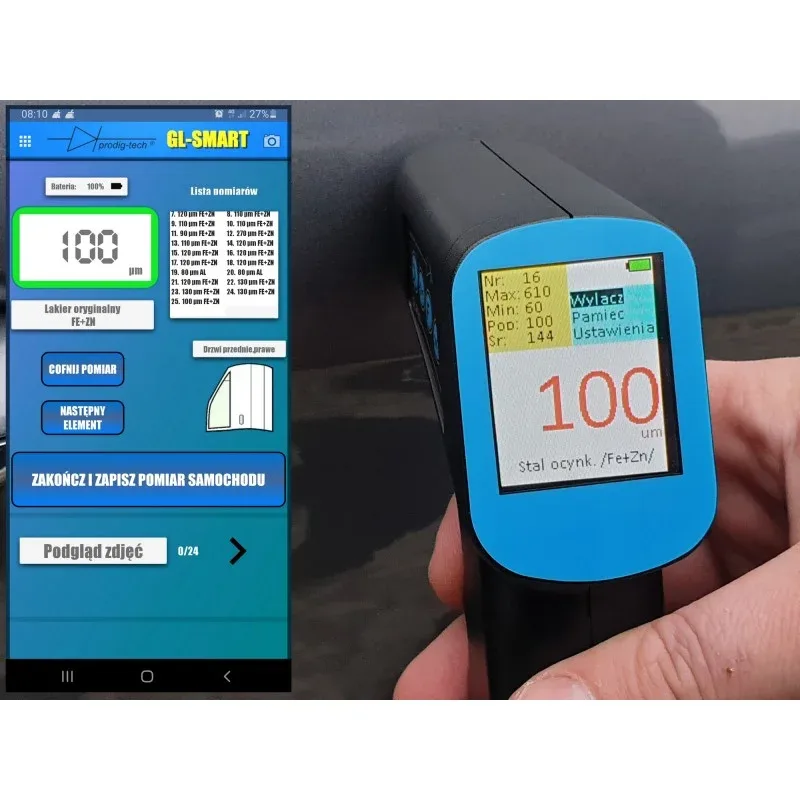
The SMART series gauges allow connection to your phone via Bluetooth technology. With the free GL-SMART app, you gain a range of additional features that are not available for standard paint thickness gauges.
The app is available for free on ANDROID and iOS systems.
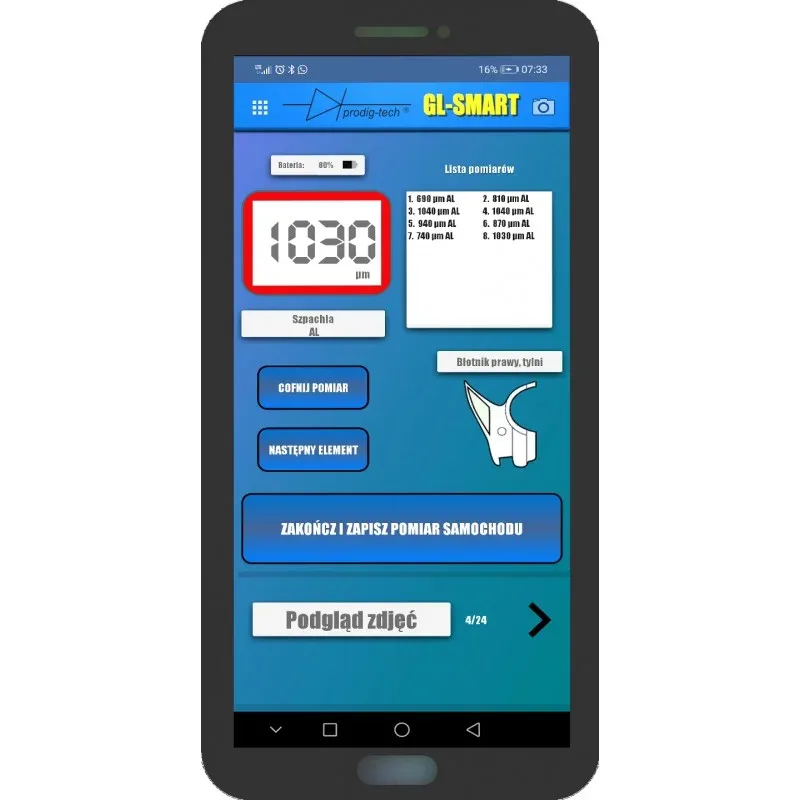
The gauge can also be operated without a phone, as it has a built-in LCD display.
GL-SMART App
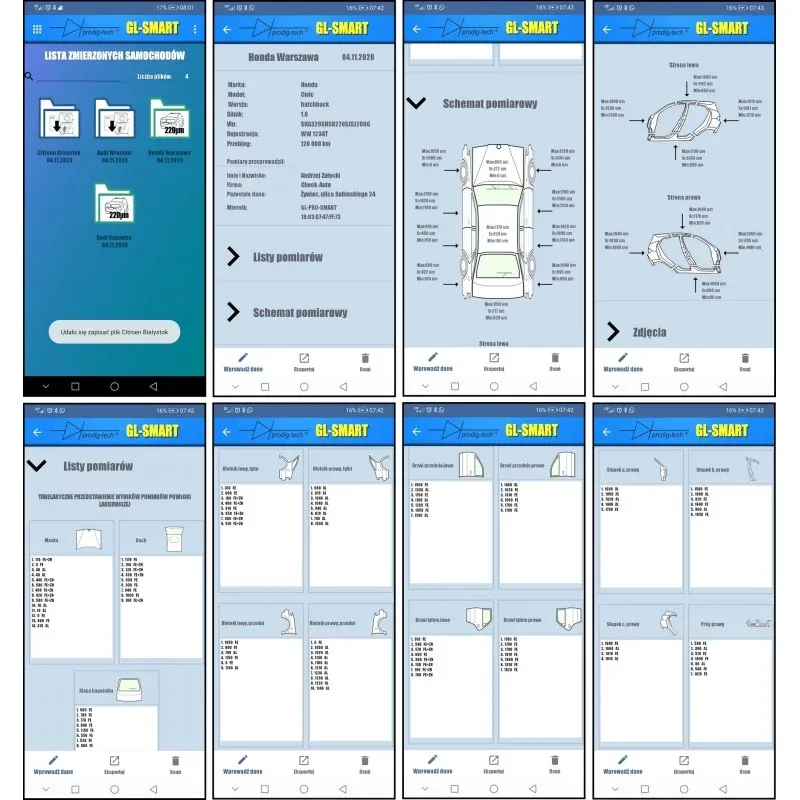
The GL-SMART app was created for the Android system, enabling connection to the paint gauge from the SMART series. Depending on the model of the gauge, we receive a range of new features that are not available for standard gauges.
The app currently supports Android version 6 or higher and iOS version 14.1 or higher. Updates provided by the manufacturer are completely free. One of the advantages of the app is that it will be continuously developed and improved. The GL-SMART app can be downloaded for free.
Features of the app when connected to the GL-PRO-SMART-FAZ gauge:
- Basic and extended measurement with measurement recording;
- Professional measurement with measurement of individual body elements;
- Generating reports with measurements and additional information such as brand, registration, VIN, notes, etc.;
- Exporting reports to PDF files;
- Adding photos of the vehicle being measured;
- The app currently requires ANDROID version 6 or higher; iOS 14.1 or higher;
- The app is continuously being developed and will always be expanded with new features, updates will always be free.
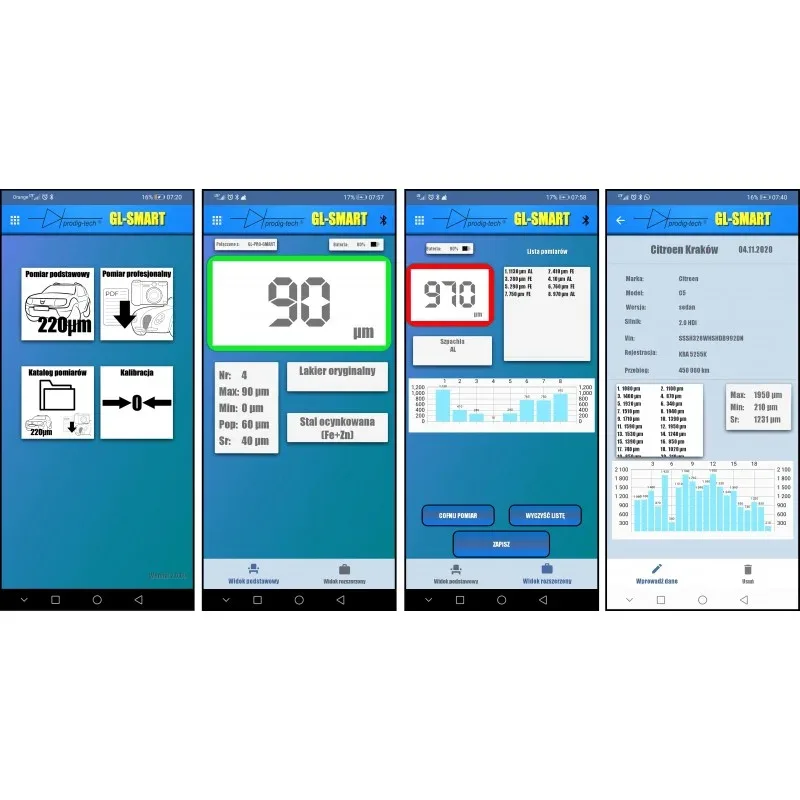
The GL-SMART app is intuitive to use. Upon launch, the main dashboard will be displayed, allowing you to select one of the options:
- Basic measurement;
- Professional measurement;
- Measurement catalog;
- Calibration.
Note: The app may request permission to access location and camera and media after launching or selecting a specific function. Permission to access location is necessary for Bluetooth 4 to work; this is a technical requirement of the Android system. We do not collect any information about the phone's location.
Basic Measurement
After selecting this function, a list of detected gauges will be displayed – you need to select one of them. The app will enter measurement mode in "basic view." Switching to "extended view" will reveal additional features: a table with a list of measurements, a chart with measurements, and the ability to save measurements in the measurement catalog.
To perform a measurement, you also need to switch to the measurement function in the GAUGE MENU. After placing the gauge on the body, the measurement will be displayed on the gauge's LCD screen and in the GL-SMART app.
Professional Measurement
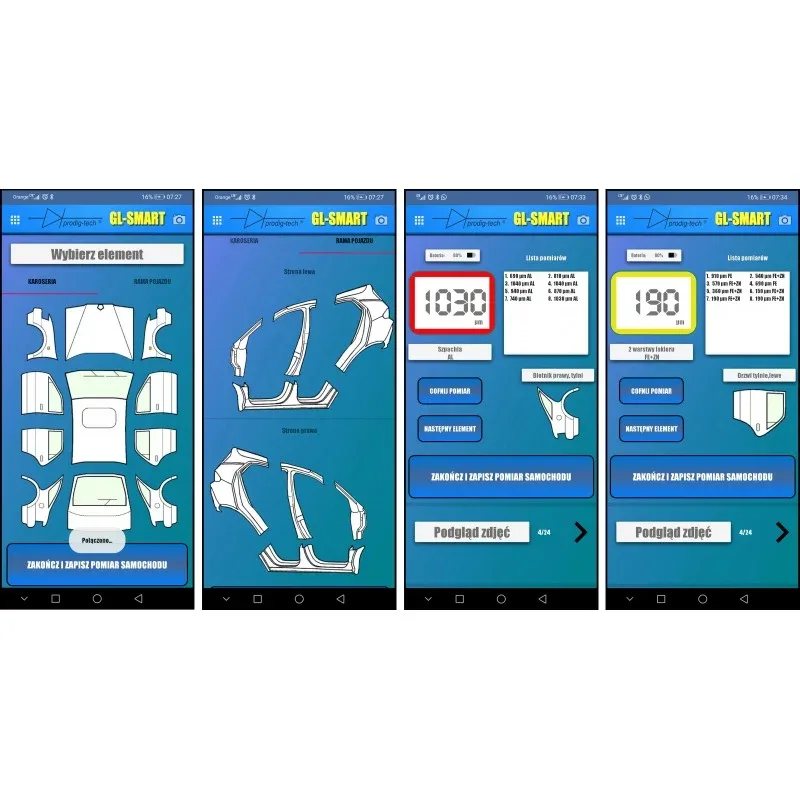
This allows measurement divided into individual body elements. A graphic will be displayed showing the car projected onto individual fragments. After selecting a specific fragment, a view will be displayed as shown in the picture on the left. The measurement is performed similarly to what is described in the "basic measurement" function.
In professional mode, there is also the option to save the measurement. If you have the GL-SMART-8 version of the gauge, you can take up to 10 photos of the measured vehicle. To do this, click on the camera icon in the upper right corner of the app. The photos will be saved in the catalog along with the measurement of that car. For each vehicle being measured, the photos are saved separately.
Measurement Catalog
This contains saved measurements divided into professional (icons with dark blue borders) and basic (icons with green borders). By selecting a specific measurement file, you have the option to edit data such as brand, engine, model, mileage, data of the person conducting the measurements, conclusions, etc. Additionally, the professional measurement file has the function of exporting data to a PDF file.
Calibration
By selecting this function, there is the option to calibrate the gauge. Follow the prompts.
Reviews
Delivery - cost and time
Orders weighing less than 2 kg are shipped via Polish Post Office. Once outside the borders of Poland, the package will be handled by a local company providing standard postal services.
Orders heavier than 2 kg are sent via courier service. The choice of courier company is tailored to each order and generally based on the lowest available price.
Price of international delivery :
Up to 2 kg - 39PLNMore than 2 kg - individual calculation
How to make an order
FIRST:
Order by email. Let me know what do you need. PRESS HERESECOND:
Order by our website or by EBAY.THIRD:
Only for companies and industries. Are you reseller? Let me know - we can offer very good prices. PRESS HERENewest products in the store


 CCYinterfaces
 CCYinterfejsy
49.jpg)